Some nice PhpStorm secrets
Gary Hockin is a developer advocate at JetBrains, the firm that created PhpStorm. In this Nomad PHP video Gary shares some of his favourite PhpStorm secrets.
Tim Pettersen shares some of his git aliases.
Git has a strong commitment to backwards compatibility: many powerful features are hidden behind options rather than exposed as default behaviour. Fortunately Git also supports aliases, so you can create your own commands that do all manner of Git magic. Here’s a selection of the more useful (or at least entertaining) aliases defined in my .gitconfig
https://hackernoon.com/lesser-known-git-commands-151a1918a60
Join 9,500+ smart developers
Get my monthly newsletter with what I learn from running Spatie, building Oh Dear, and maintaining 300+ open source packages. Practical takes on Laravel, PHP, and AI that you can actually use.
No spam. Unsubscribe anytime. You can also follow me on X.
"Always fresh, useful tips and articles. Carefully selected community content. My favorite newsletter, which I look forward to every time."
Laravel Shift is a paid service that can upgrade a Laravel project. I've used it a couple of times. Although some manually work is needed to complete the upgrade, it has saved me many hours. The service has recently shifted it's 1000th project, a major milestone. In a post on his blog Jason shares how he started the service and where it's going in the future.
In this post, I want to focus more on reaching the milestone of 1,000 Laravel applications upgraded. This may not sound like many, however for my first SaaS product it marks the achievement of my stretch goal. So allow me to share the most important decision, biggest challenge, and what the future holds for Laravel Shift.
http://jason.pureconcepts.net/2016/09/laravel-shift-1000-applications-upgraded/
Dries Vints does not blog often, but when he does it's very much worth your time to read.
We all have specific ways of setting up our computer. It's all different somehow. The apps we use, our IDE settings, what shell we prefer, what programming languages we work with, the tools we prefer. How on earth are we going to get that specific setup back the way we had it before our computer broke down?https://driesvints.com/blog/getting-started-with-dotfilesEnter dotfiles.
You can find Dries' dotfiles on GitHub. Mine can be found here.
Transfer.sh is a free service by Dutchcoders that allows you to easily share files from the command line. Here's an example of how you can use it:
transfer my-favorite-file.txt
The given file will be uploaded to the transfer.sh-servers and the command will respond with a short url linking to that file. Pretty neat!
The only thing you need to do is set up a bash function called "transfer" (you can name it anything you want really).
Don't trust the transfer.sh with your supersecret files? Then you can set up your own server to transfer the files to.
PHPStorm is the application I'm working in most of the time. So I want it to be as pretty as it can be. Right out the box PHPStorm contains two bat shit ugly themes: the default white one and the slightly better Darcula.
Fortunately for all PHPStorm users out there long time Laravel community member Dayle Rees showed us the way to the light! A few years ago he created an abundance of colour schemes that are a pleasure to the eye. You can view all the schemes on the demo page.
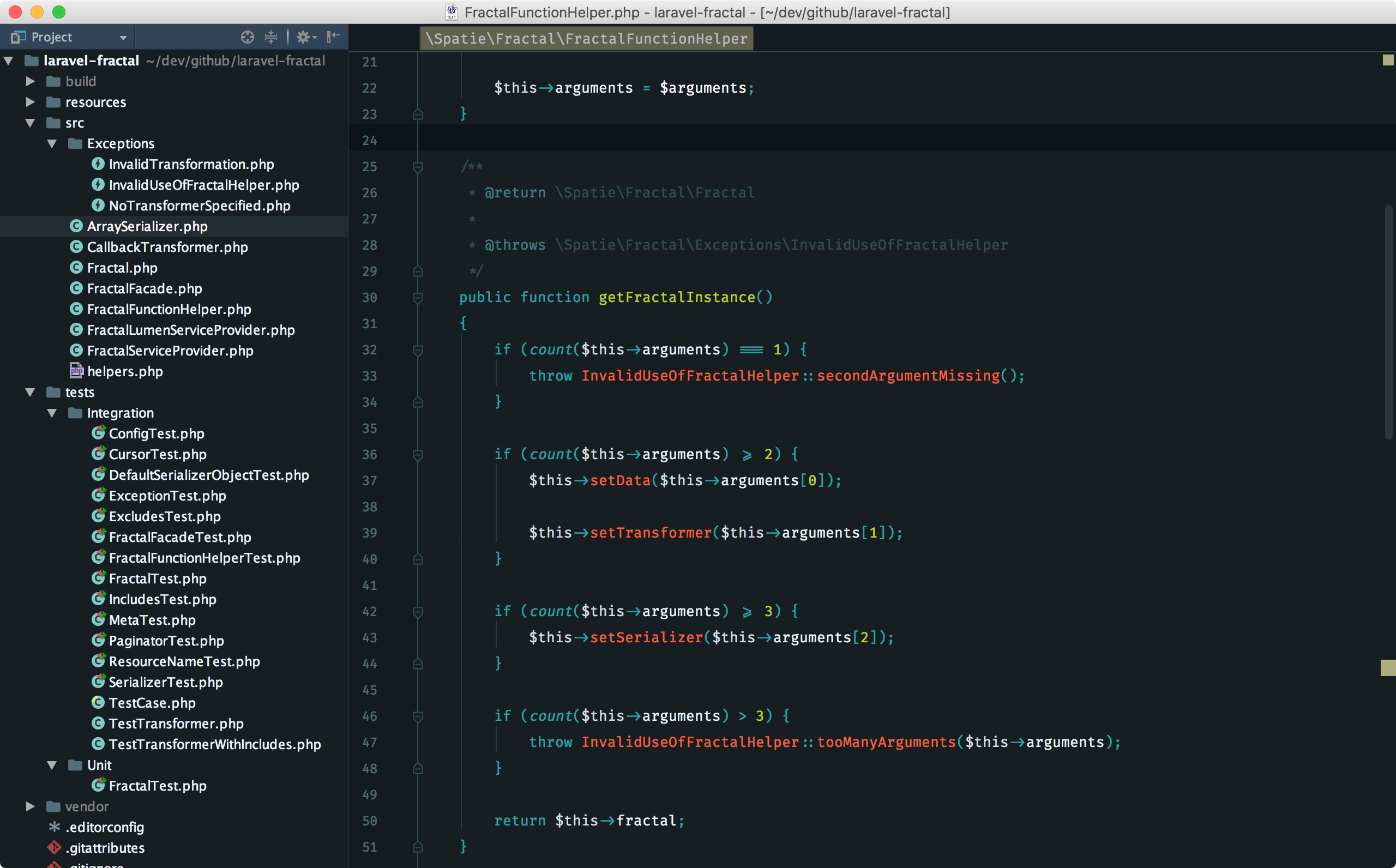
More recently Dayle created a new colour scheme called Material Peacock. This is what it looks like:
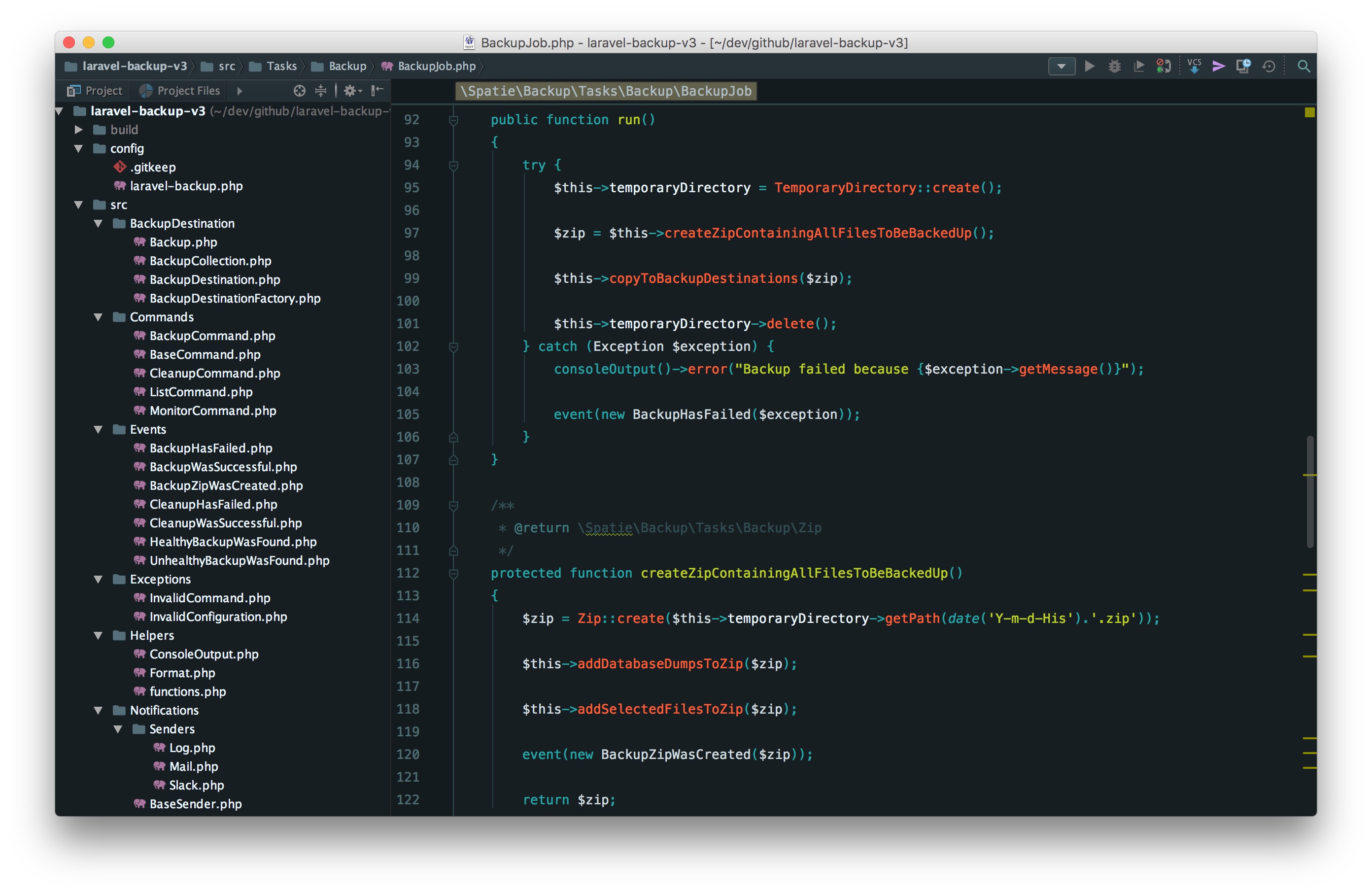
Very nice! Almost everywhere I open up PHPStorm people ask what that theme is, so I'm certainly not the only one who digs it. At this year's PHP UK Conference a PHPStorm-engineer from Jetbrains said it was the most beautiful theme he ever saw in his own product.
You find instructions on how to install the theme (made by Chris Magnussen) and the colour scheme in Dayle's Material Peacock repo on GitHub.
Thijs Feryn gave an overview at the Limburg PUG on various available tools and techniques to improve the performance of a website.
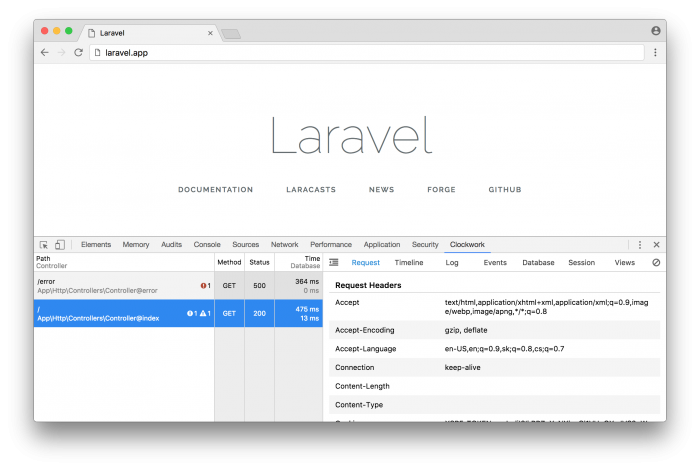
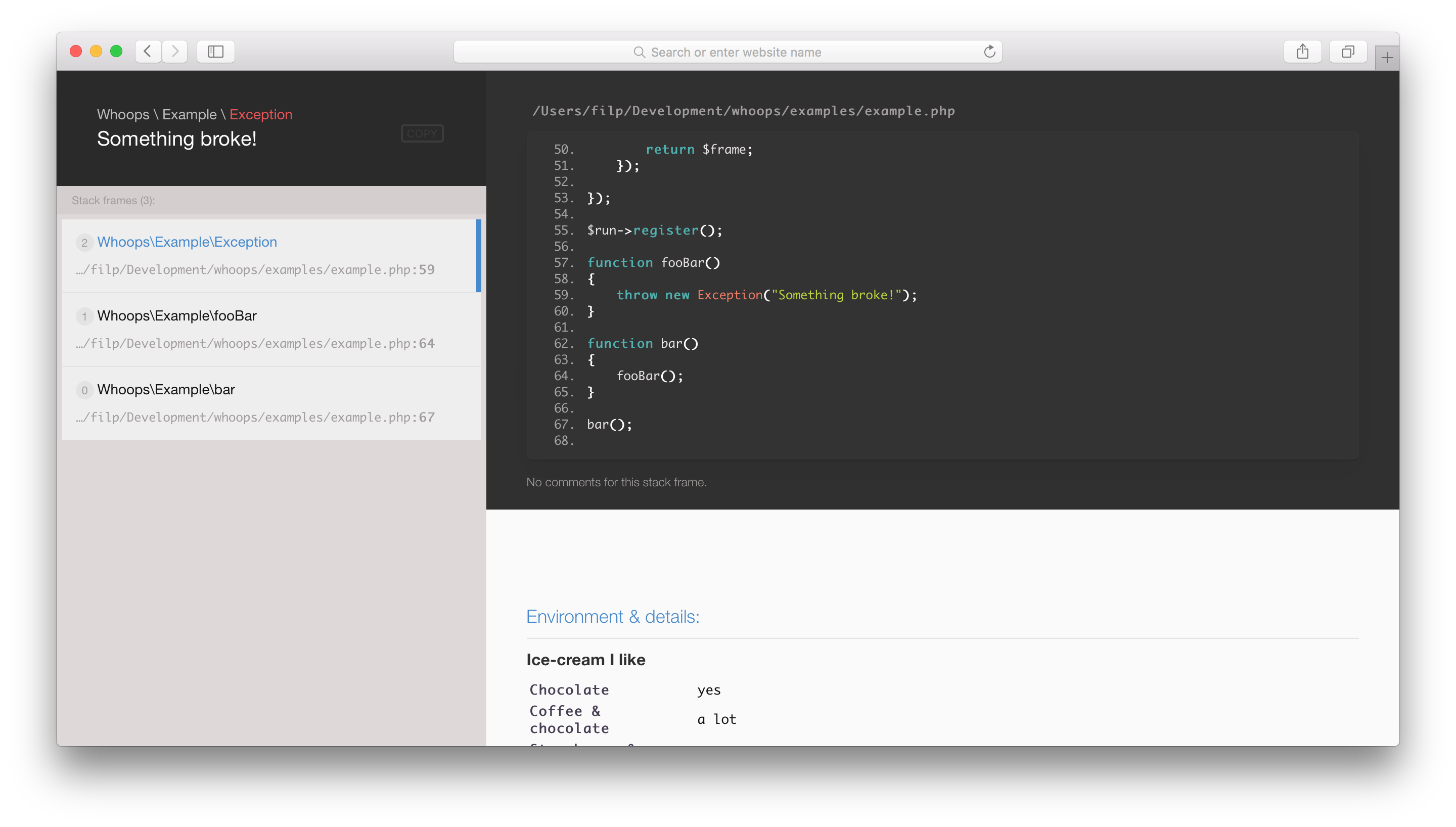
Whoops is an error handler framework for PHP. It's easy to integrate into a lot of frameworks, including Laravel 5. I prefer using Whoops over the default Laravel behaviour because Whoops displays the lines of code where the error/exception occurred. The maintainer Dennis Sokolov recently released a new major version which features a new beautiful design.
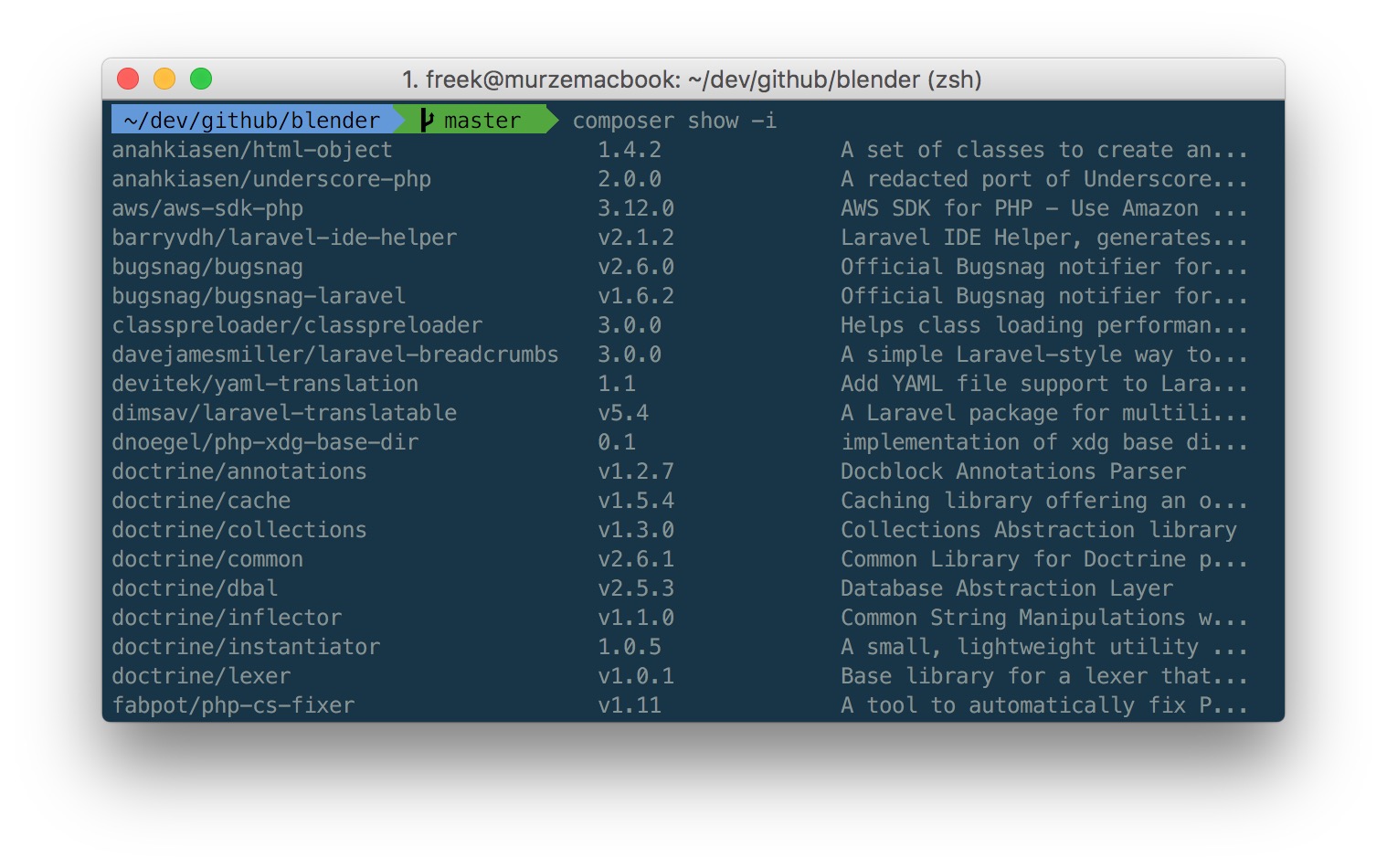
Composer really needs no introduction. At this point the PHP community pulled in billions of packages. Here are some Composer options that are not so well known.
You can view the versions of all the packages in your project by running composer show -i. Let's try it out in our Blender Laravel template:
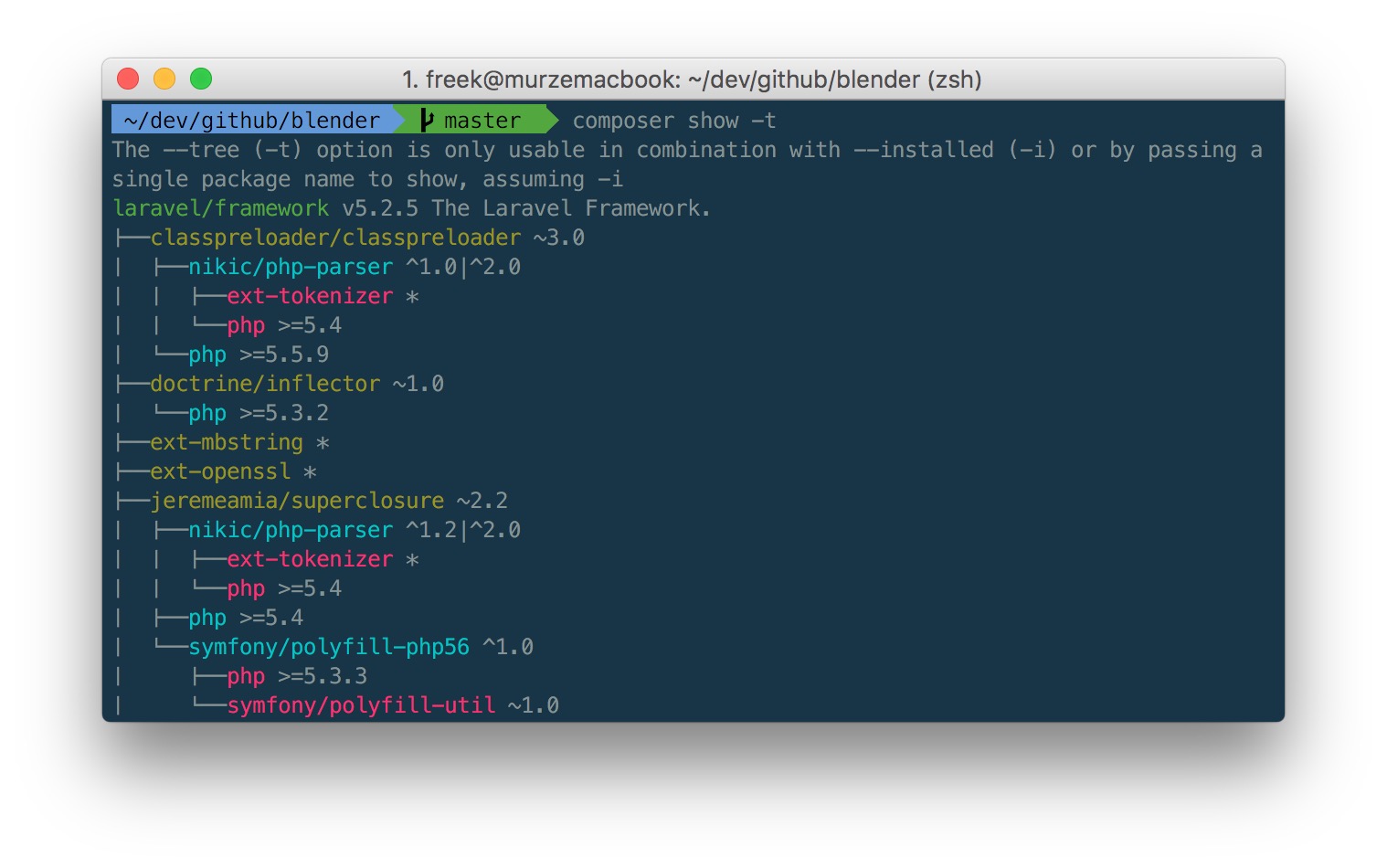
Want to see all the dependencies of the installed packages in a tree? Then run composer show -t:
If you need help using a specific package then you can open it's documentation in a browser using composer. Try running composer home spatie/laravel-fractal to see it in action.
Know some other nice Composer tricks? Let me know in the comments below.
Last week Jan Oris gave a talk on creating your own development tools at the Limburg PHP User Group. He touches on the why and how of creating packages as well. I hope some of you will start creating packages too after seeing this.
https://youtu.be/KTdA7kf2cUM?t=1m21s
Last year I made myself a bit acquainted with Vim. I'm by no means an expert and am not (yet :-)) advocating to replace your favourite IDE with Vim. I use it for small things:
Watch this video clearly explains the basic commands.
https://www.youtube.com/watch?v=Nim4_f5QUxA
In this post, the Netflix Performance Engineering team will show you the first 60 seconds of an optimized performance investigation at the command line, using standard Linux tools you should have available.http://techblog.netflix.com/2015/11/linux-performance-analysis-in-60s.html
Fluency on the command line is a skill often neglected or considered arcane, but it improves your flexibility and productivity as an engineer in both obvious and subtle ways. This is a selection of notes and tips on using the command-line that we've found useful when working on Linux. Some tips are elementary, and some are fairly specific, sophisticated, or obscure. This page is not long, but if you can use and recall all the items here, you know a lot.https://github.com/jlevy/the-art-of-command-line/blob/master/README.md
Every webdeveloper has probably at some point wondered which technologies a particular site is using. Sure, you could browse the source of a page to find any hints on for instance what cms is being used. Or you could inspect the response headers to see what version of php is used.
Instead of hunting down those clues yourself, you could use the Wappalyzer plugin. Once installed it shows an extra icon in your browser. It indicates what sort of framework or cms is used. Clicking on the icon reveals even more info such as which JavaScript libraries are embedded on the site. It's a great tool.
Having documentation on your API is highly beneficial. If it is well written you're likely going to receive less questions by consumers of your API about how it works.
Aglio is a nice tool that I've been using to generate API documentation. In goes the Markdown, out comes the beautiful documentation.
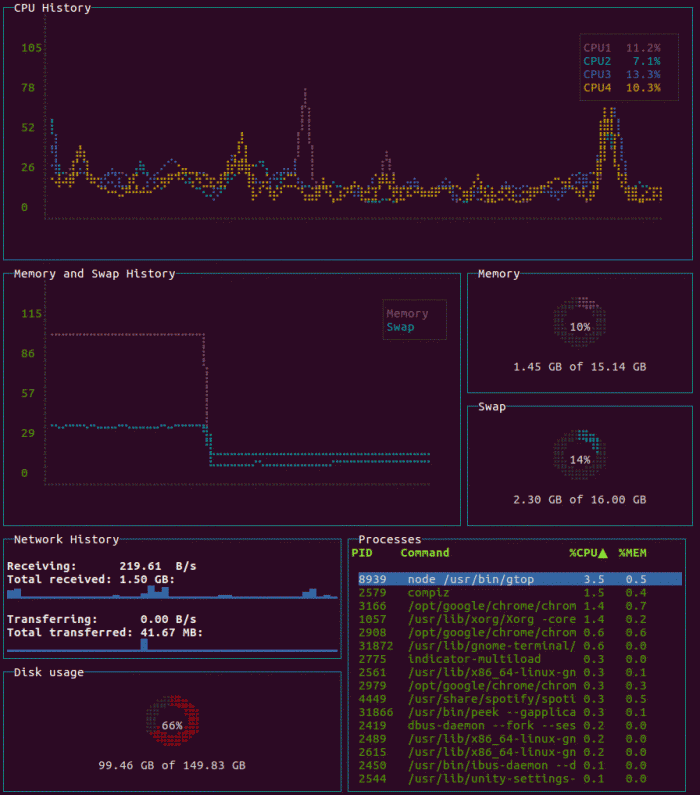
GoAccess is an open source real-time web log analyzer and interactive viewer that runs in a terminal in *nix systems. It provides fast and valuable HTTP statistics for system administrators that require a visual server report on the fly.
http://goaccess.io
Supercharge OSX' Quick Look with these plugins:
https://github.com/sindresorhus/quick-look-plugins
You can opt to install them manually, the cool kids prefer to do this with Homebrew Cask.
I didn't know, until a colleague mentioned it today, PhpStorm offers a clipboard history.
On the mac press cmd+shift+v to invoke it.
By default it only stores the last 5 copied items, but you can increase that number in the preferences.
Very handy!
Duet is the first app that allows you to use your iDevice as an extra display for your Mac using the Lightning or 30-pin cable.http://www.duetdisplay.com/
Very cool, almost no lag, works as advertised.