Using BetterTouchTool as a window manager original
In this short post, I'd like to share how I use BetterTouchTool in my daily work.
Here's a screenshot of my shortcuts.
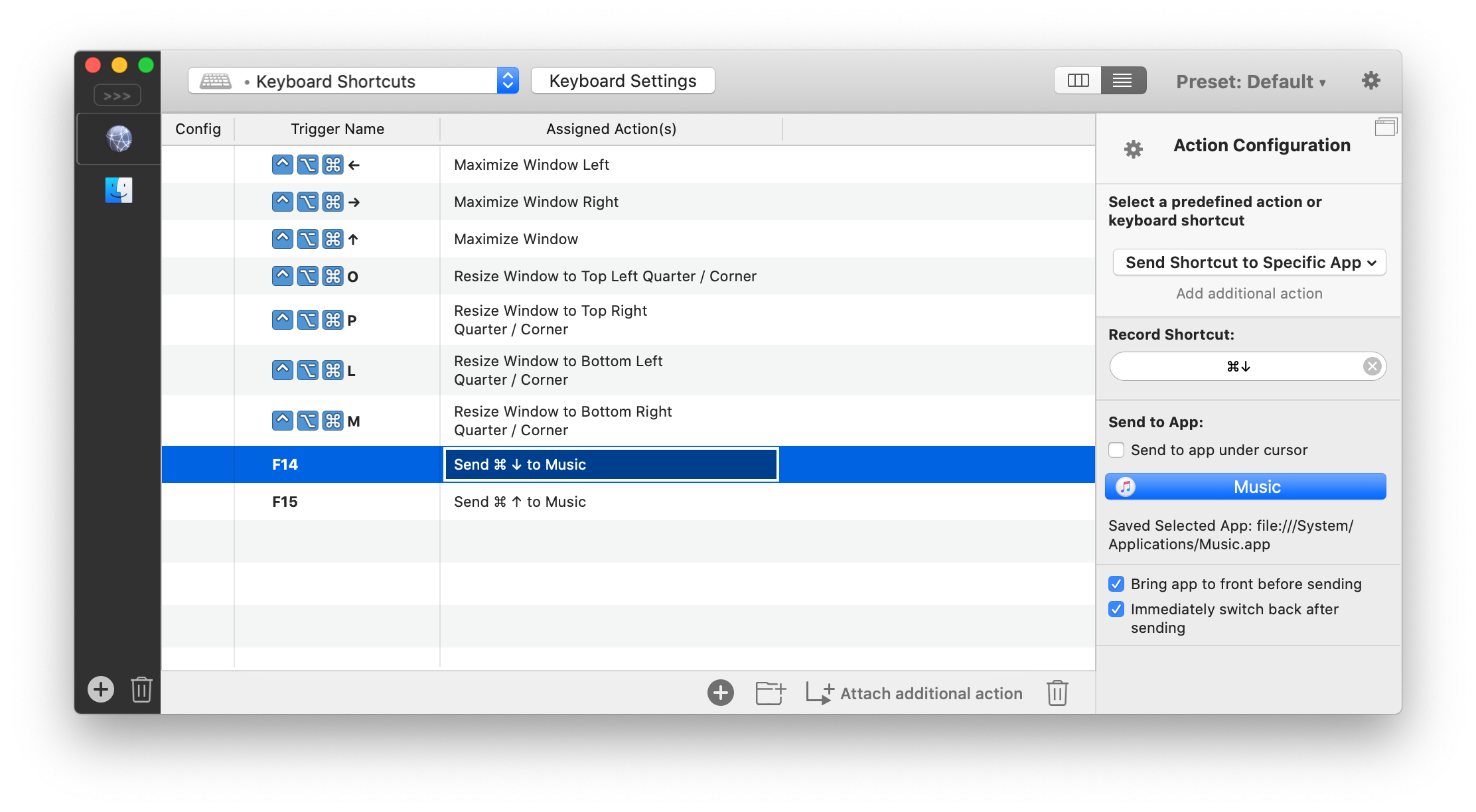
Let's explain those. BetterTouchTool can resize your windows. I've got a couple of shortcuts set up that can immediately resize a window to the half size of the screen, or to use a quadrant. Using those shortcuts, I can very quickly organize windows, so they line up perfectly.
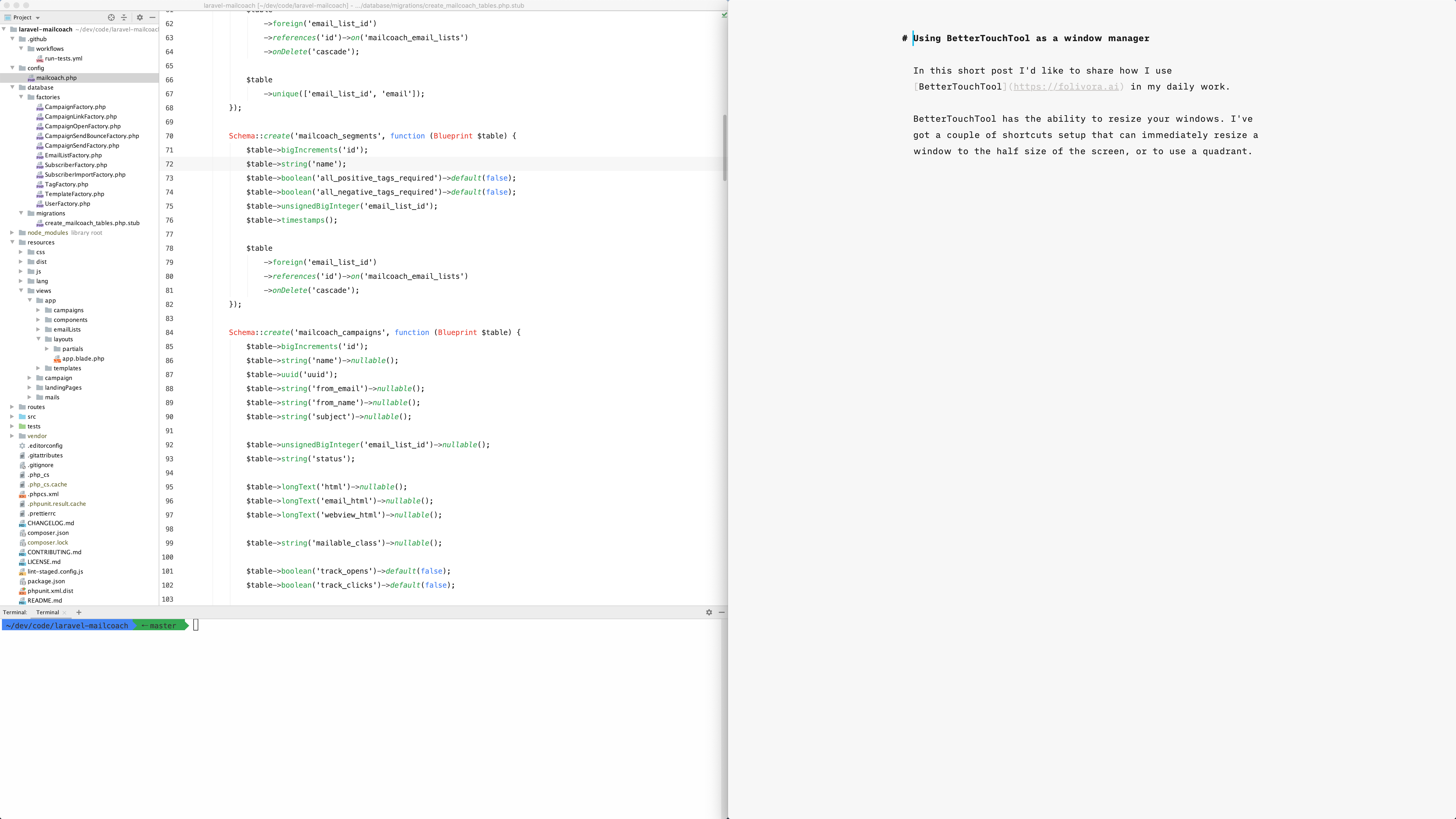
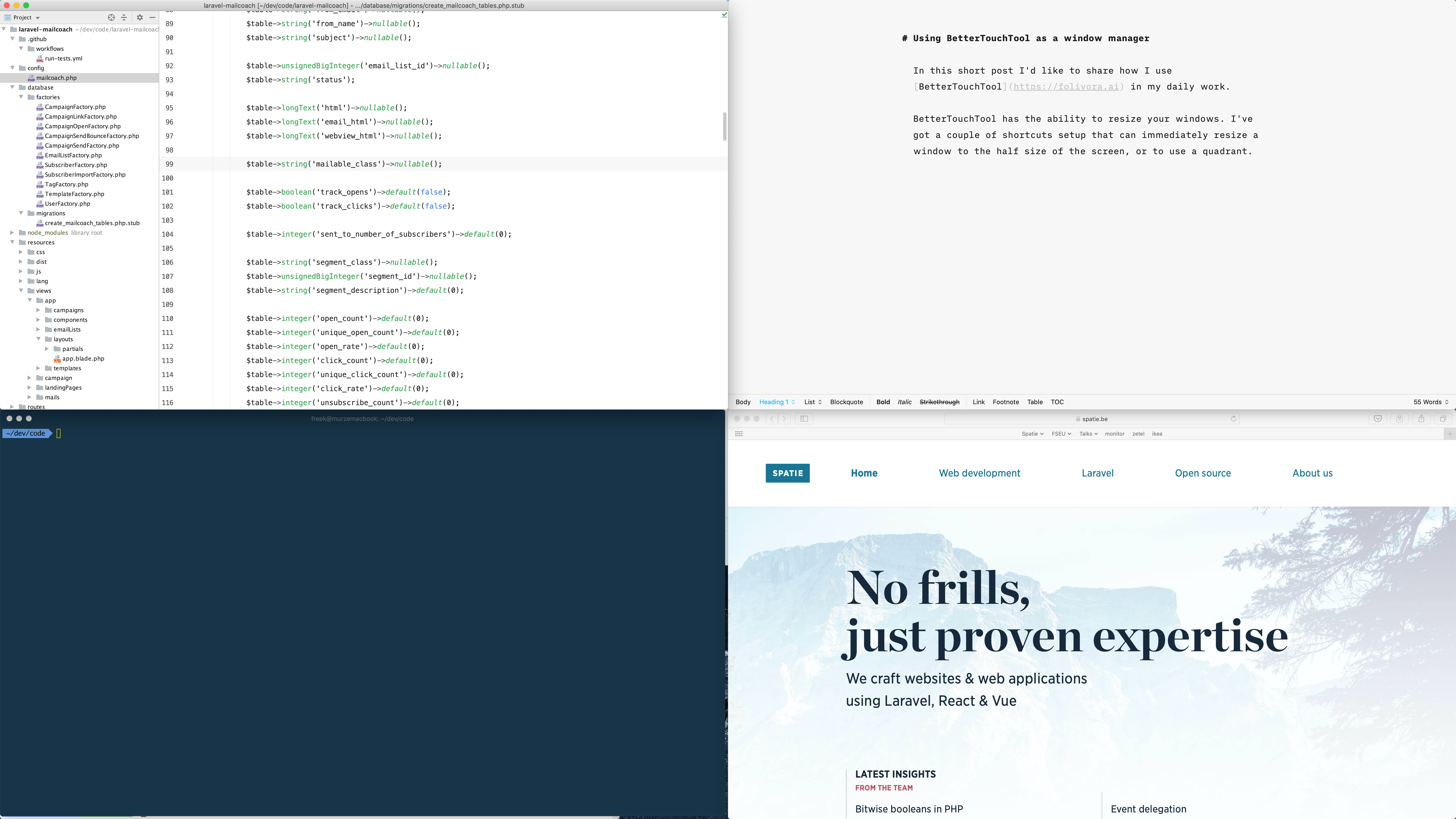
In the screenshots above, you'll also notice that I've set up MacOS to hide the menu and Dock by default. Doing so saves some precious screen estate, and I highly recommend you to do so.
While working, I often listen to music. Using BetterTouchTool, I can press F14 and F15 to control the volume from within any app. If you want to do this too, make sure to check the "Bring App to front before sending" and "Immediately switch back after sending" checkboxes.
If you want to use the same shortcuts as a do, import this settings file which contains all my shortcuts.